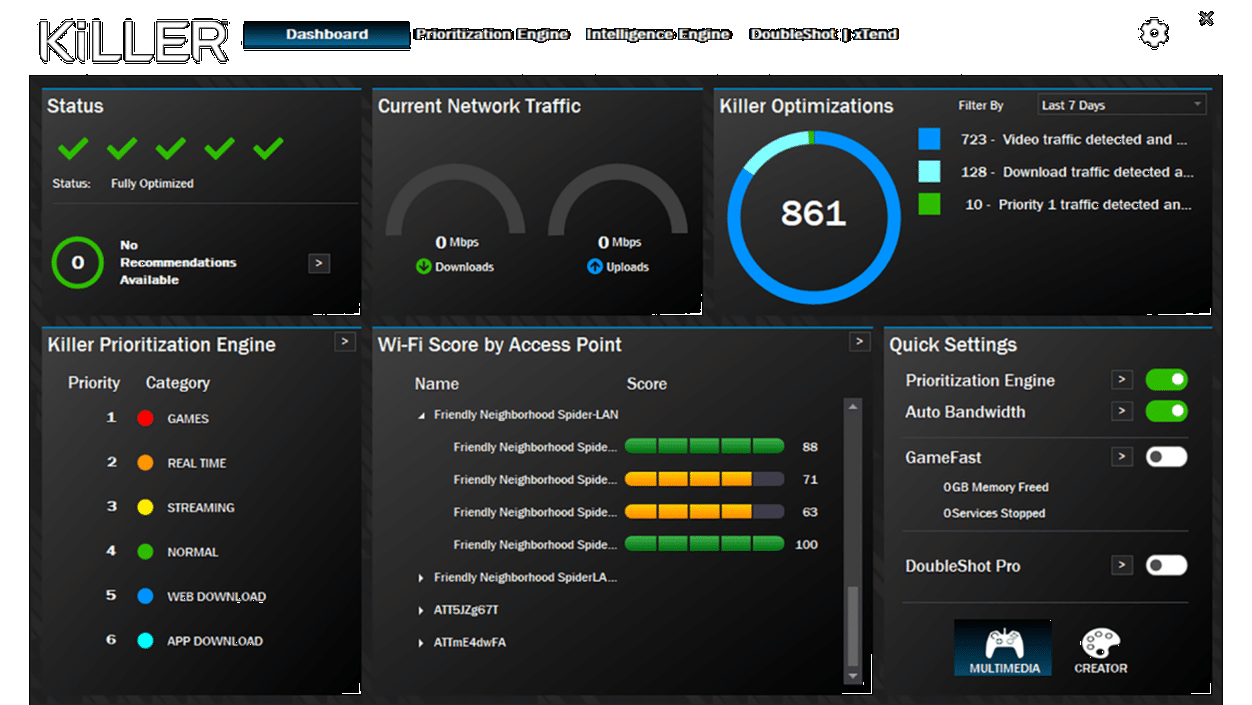
Ever looked at your Task Manager and wondered why something called "Killer Intelligence Center" is hogging your resources? You aren't alone. It’s one of those programs that shows up uninvited on high-end Dell, Alienware, or MSI laptops, usually riding shotgun with Intel networking hardware. Some people swear it’s the secret sauce for lag-free gaming. Others? They think it’s glorified bloatware that actually makes their Wi-Fi worse.
Honestly, the truth is somewhere in the middle.
The Killer Intelligence Center application is a management suite designed to prioritize your internet traffic. It doesn't give you "more" internet. Instead, it acts like a traffic cop at a busy intersection. If you’re playing Valorant while a Windows update is chugging away in the background, this app is supposed to shove that update to the back of the line. It wants your game packets to have the right of way so your ping doesn't spike into the triple digits.
What Does the Killer Intelligence Center Actually Do?
Technically, it's the interface for the Intel Killer Performance Suite. Back in the day, a company called Rivet Networks owned this tech before Intel swallowed them up in 2020. Now, it’s a standard feature for any machine using Killer-branded Wi-Fi or Ethernet cards.
It operates on a few main pillars. First is the Prioritization Engine. This is the core logic. It identifies what you're doing—streaming, gaming, or just browsing—and assigns each task a priority level from 1 to 6. A game usually gets a 1. A background cloud backup might get a 6.
Then there’s DoubleShot Pro. This is actually kinda cool if you have both a Killer Ethernet port and a Killer Wi-Fi card. It lets your computer use both connections at the exact same time. It sends high-priority traffic over the stable wire and pushes lower-priority stuff over the Wi-Fi. It sounds like overkill, but for a streamer who can't afford a single dropped frame, it’s a legitimate safety net.
The Intelligence Engine and AP Selection
The "Intelligence" part of the name refers to the engine that constantly monitors your environment. It looks for the cleanest Wi-Fi channel. If your neighbor’s router is screaming on Channel 6 and making your connection choppy, the app will suggest you switch to a different frequency.
It also has a feature called GameFast. When you launch a game, this tool pauses non-essential Windows processes. It’s trying to claw back every megabyte of RAM and every ounce of CPU power.
The Love-Hate Relationship with "Killer" Software
If this software is so smart, why do so many people want to delete it?
One big issue is the Killer Analytics Service. Users on forums like Reddit often complain that this service eats up 10-20% of their CPU for no apparent reason. It’s supposed to be gathering data to "optimize" your experience, but sometimes the optimizer becomes the bottleneck.
There’s also the "throttle" problem. I’ve seen cases where the app incorrectly identifies a large, legitimate download as "junk" traffic. Suddenly, your 1Gbps fiber connection is crawling at 5Mbps because the Killer Intelligence Center thinks it’s doing you a favor.
Does it actually improve ping?
In a perfect world, yes. In a real-world scenario with a fast router and a clean OS, the difference is often negligible. Modern versions of Windows are actually much better at handling packet prioritization than they were ten years ago.
Troubleshooting Common Issues
If your internet feels sluggish and you see this app running, you should check the Bandwidth Limits first. Sometimes the app runs an internal speed test that fails or gets a low reading. If it thinks your max speed is 20Mbps, it will cap your entire system at that speed, even if you’re paying for 500Mbps.
- Step 1: Open the app and go to Settings.
- Step 2: Look for "Set Bandwidth Limits."
- Step 3: Either disable the limits entirely or manually enter your actual ISP speeds.
If that doesn't work, many power users suggest disabling the services without uninstalling the drivers. You can do this by hitting Win + R, typing services.msc, and finding anything starting with "Killer." Set them to "Disabled." This keeps the hardware working but stops the "intelligence" from messing with your packets.
Who Should Actually Keep It?
Content creators and competitive gamers are the primary audience here. If you are uploading a 4K video to YouTube while trying to play an online match, you need some form of Quality of Service (QoS). If your router doesn't have built-in QoS, the Killer Intelligence Center application is your best bet for managing that juggle.
For the average person who just watches Netflix and checks email? You probably won't notice if it’s gone.
Final Thoughts on Optimization
The software has come a long way since the Rivet Networks days. Intel has cleaned up a lot of the code, and the 2025/2026 versions are much more stable than the buggy releases from five years ago. However, it still adds a layer of complexity to your network stack.
If you decide to keep it, make sure you update it through the Intel Driver & Support Assistant rather than just relying on Windows Update. Windows Update often pulls generic versions that can cause the very lag you're trying to avoid.
Actionable Next Steps
To get the most out of your networking hardware without the headache, follow these steps:
- Check for CPU Spikes: Open Task Manager and sort by CPU usage. If
KillerIntelligenceCenter.exeor its associated services are consistently above 5% while idle, consider a clean reinstall of the suite. - Verify Bandwidth Settings: Ensure the "Auto-bandwidth" toggle is accurate. If it’s wrong, your internet speed will be artificially capped.
- Update Drivers Manually: Download the latest "Killer Software Component" and "Killer Extension" drivers directly from Intel’s website to avoid the buggy versions often found on manufacturer support pages.
- Test Without the App: If you suspect it's causing drops, disable the "Killer Prioritization Engine" in the app's dashboard and run a speed test to compare the results.