You're sitting there, ready to show off your latest project or maybe just binge some Netflix on the "big screen," but the screen mirroring on MacBook icon is just... missing. Or worse, it’s there, you click it, and nothing happens. Just a spinning wheel of doom while your Apple TV or Roku sits there blankly. It’s annoying. Honestly, for a company that prides itself on "it just works," AirPlay can be a fickle beast.
Wireless display tech is basically magic when it works and a total headache when it doesn't.
Most people think they need a bunch of expensive cables to get their laptop screen onto a TV. You don't. Since macOS Big Sur and Monterey, Apple has baked these features so deeply into the Control Center that it’s usually a two-click process. But "usually" is the keyword there. Between different Wi-Fi bands, firewall settings, and the confusing handoff between Intel-based Macs and the newer M1, M2, or M3 silicon, things get messy fast.
The Secret Sauce of Screen Mirroring on MacBook
Apple uses a protocol called AirPlay. It’s not just "sending a video file" over the air; it’s a constant handshake between your MacBook and the receiving device. If that handshake drops for even a millisecond because your microwave is running or your neighbor is on the same Wi-Fi channel, the whole thing collapses.
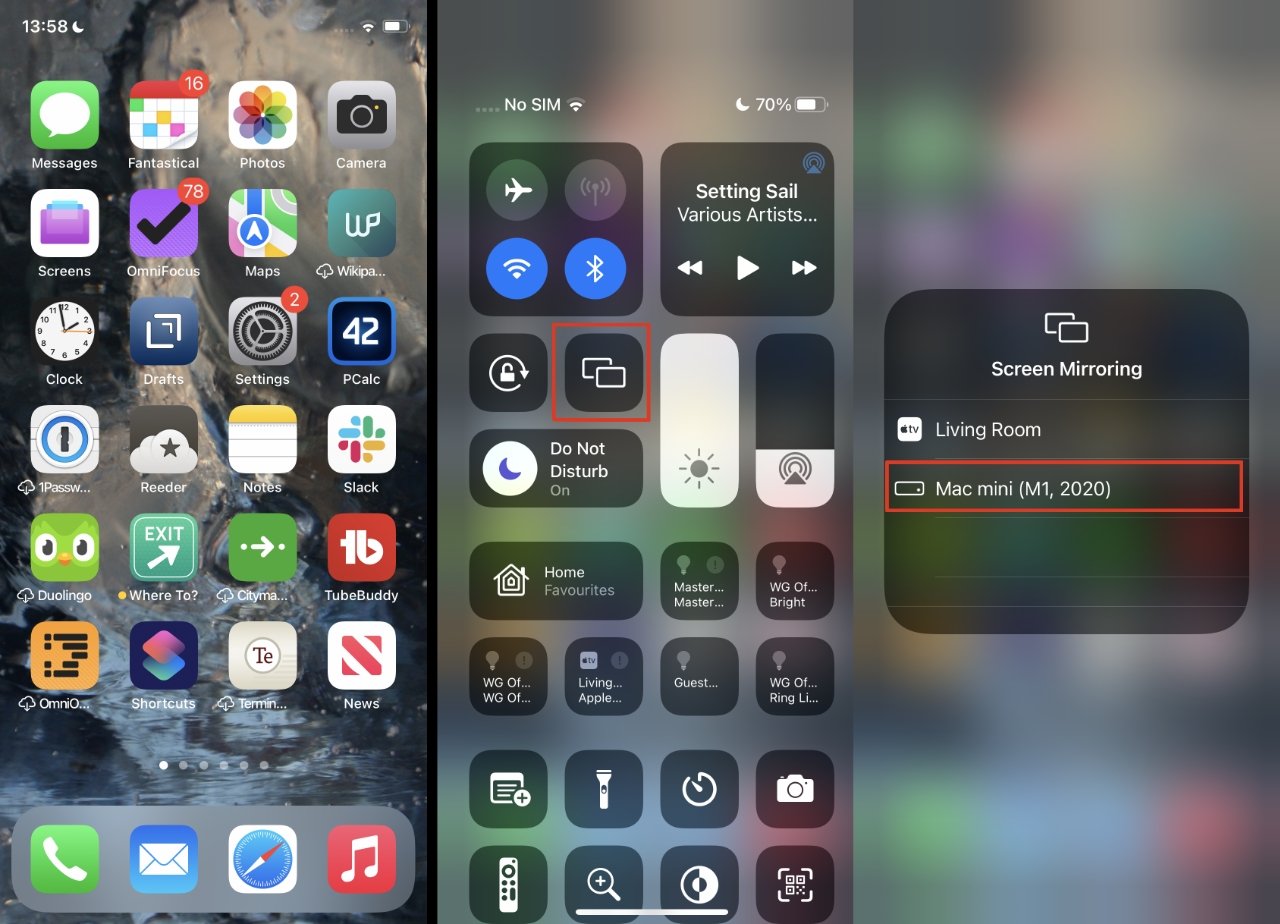
To start, you’re looking for the Control Center icon in the top right of your menu bar—it looks like two tiny toggle switches. Click that, and you’ll see Screen Mirroring.
Wait.
Before you click it, make sure your receiving device is actually "discoverable." If you're using an Apple TV, it’s usually fine. But if you’re trying to mirror to a Samsung TV, LG, or a Sony with AirPlay 2 built-in, you often have to go into the TV settings and manually toggle AirPlay to "On." I’ve seen so many people give up because they didn't realize their TV had the feature disabled by default to save power.
Why Your Mac Can't See the TV
It's almost always the network.
Seriously.
Even if both devices are "on the same Wi-Fi," they might not be on the same frequency. Most modern routers broadcast on both 2.4GHz and 5GHz. Your MacBook might be sitting on the speedy 5GHz band while your older smart TV is chugging along on 2.4GHz. Technically they are on the same network, but they're in different "lanes."
Try forcing both to the same band. If that fails, toggle your MacBook's Wi-Fi off and back on. It sounds like the "did you turn it off and on again" cliché, but it clears the discovery cache.
Another weird one? The Firewall. Go to System Settings > Network > Firewall. If it’s on, click Options and make sure "Block all incoming connections" is unchecked. If that box is checked, your Mac is basically wearing earplugs and can’t hear the TV trying to talk back to it.
Beyond the Basics: Mirroring vs. Extending
Most people just mirror. They want exactly what's on the laptop to appear on the TV. But that’s usually a waste of space.
When you use screen mirroring on MacBook, you can actually choose to "Use As Separate Display." This is the pro move. It turns your TV into a second monitor. You can have your Slack or email on the MacBook screen and a full-screen presentation or video on the TV.
- Click the Screen Mirroring icon.
- Select your device.
- Click the icon again (it turns blue when active).
- Choose "Separate Display."
The resolution might look wonky at first. Macs try to match the TV's resolution, which can make your MacBook text look tiny. In the Displays section of System Settings, you can manually override this. Pro tip: If you’re watching a movie, match the refresh rate. Most TVs run at 60Hz, but if you're a cinephile watching a 24fps film, your Mac might struggle with "judder" unless you tweak those settings.
What About Sidecar?
If you have an iPad, you’re not really mirroring in the traditional sense; you’re using Sidecar. It’s the same menu, but the tech is different. Sidecar uses a high-speed, low-latency version of AirPlay that allows you to use the Apple Pencil on your iPad to control Mac apps like Photoshop or Final Cut.
If Sidecar isn't showing up, check your Apple ID. Both devices must be signed into the exact same iCloud account. No exceptions. They also need Bluetooth enabled, even if you’re using a USB cable to connect them.
When AirPlay Just Won't Cooperate
Sometimes the software just hangs. You can force restart the AirPlay process without rebooting your whole Mac. Open "Activity Monitor" (Command + Space, then type it in). Search for "AirPlayXPCHelper." Click the "X" at the top to force quit it. Don't worry, macOS will immediately restart the process, and often, that's enough to make the TV reappear in your list.
There's also the "Awakening" issue. Some TVs support "AirPlay Wake," meaning the Mac can turn the TV on. Others don't. If your TV is in a deep sleep mode, the Mac won't see it. Always wake the TV with its remote first to be safe.
Hardwired is Still King
I know, we want wireless. But if you’re doing a high-stakes presentation or editing 4K video, wireless screen mirroring on MacBook can lag. It’s just physics. A USB-C to HDMI adapter costs twenty bucks and removes all the "will it or won't it" anxiety.
If you see lag or "compression artifacts" (those little blocks in dark areas of the screen), it's a bandwidth issue. Move your router closer or get an adapter.
Real World Fixes for Common Errors
I’ve spent way too much time troubleshooting this for friends. Here are the weird fixes that actually work:
- The "AirPlay Code" Loop: If your TV keeps asking for a code but your Mac doesn't show a box to type it in, go to the TV's AirPlay settings and turn off "Requirement for Code" or "On-screen Code." Reset it to a simple password or nothing at all.
- The "Black Screen" with Audio: This is usually a DRM (Digital Rights Management) issue. If you're trying to mirror a Netflix tab from Chrome, sometimes the screen goes black because Netflix is blocking the recording/streaming of its content. Try using Safari; it handles AirPlay handshakes much better than third-party browsers.
- The Aspect Ratio Headache: If you have black bars on the sides of your TV, it’s because your MacBook has a 16:10 screen and your TV is 16:9. In the Display settings, change the "Optimize for" setting from "Built-in Display" to your TV’s name. It will stretch the image to fill the screen perfectly.
Actionable Steps to Perfect Mirroring
To get the most out of your MacBook’s display capabilities, stop treating it like a simple "plug and play" feature and start managing it like a pro workstation setup.
First, audit your Wi-Fi environment. If you’re in a crowded apartment complex, your 2.4GHz band is likely saturated. Use a free tool like "Wireless Diagnostics" (hold Option and click the Wi-Fi icon in your menu bar) to see which channels are less crowded. Shifting your router to a less-used channel can instantly fix stuttering video.
Second, update your firmware. It sounds boring, but Apple frequently pushes "unspecified bug fixes" to the AirPlay protocol in macOS updates. Likewise, smart TV manufacturers like LG (WebOS) and Samsung (Tizen) release patches that specifically fix connectivity issues with Apple devices. If it's been six months since you updated your TV, do it now.
Third, clean up your AirPlay list. If you have old devices showing up, go to your iCloud settings and remove devices you no longer own. This speeds up the "discovery" phase when you click that mirroring button.
Finally, if you find yourself mirroring every single day, stop using AirPlay and buy a dedicated dock. A Thunderbolt dock allows you to connect to a monitor or TV via a single cable that also charges your laptop. It saves your battery and provides a zero-latency experience that wireless simply cannot match in 2026.
If you must stay wireless, stick to the 5GHz band and keep the path between your MacBook and the TV clear of physical obstructions. Every wall or piece of furniture is a hurdle for that signal.